Have you ever found yourself in this awkward situation? A friend or family member comes over, asks for your WiFi password, and suddenly, you can't remember it because you haven't typed it in for months.
With modern laptops and smartphones offering auto-connect features, it's easy to forget the passwords to our own networks. Instead of panicking, searching for your router's original packaging, or resetting your entire network, you can actually retrieve your saved WiFi password in just a few seconds.
If your laptop is currently connected to the network or has connected to it before, your operating system may have saved its password. Here's a practical and safe guide to finding your WiFi password directly from your laptop.
1. How to Find Your WiFi Password on Windows (Using Control Panel)
This is one of the easiest and most commonly used methods if your Windows laptop is currently connected to the WiFi network whose password you want to retrieve.
- Step 1: Click the WiFi or internet signal icon in the bottom-right corner of your screen (Taskbar), then select Network & Internet settings.
- Step 2: Find and click Network and Sharing Center. Depending on your Windows version, you may find it near the bottom of the page or in the right-hand panel.
- Step 3: A new window will open. Under View your active networks, click your WiFi network name displayed in blue next to Connections.
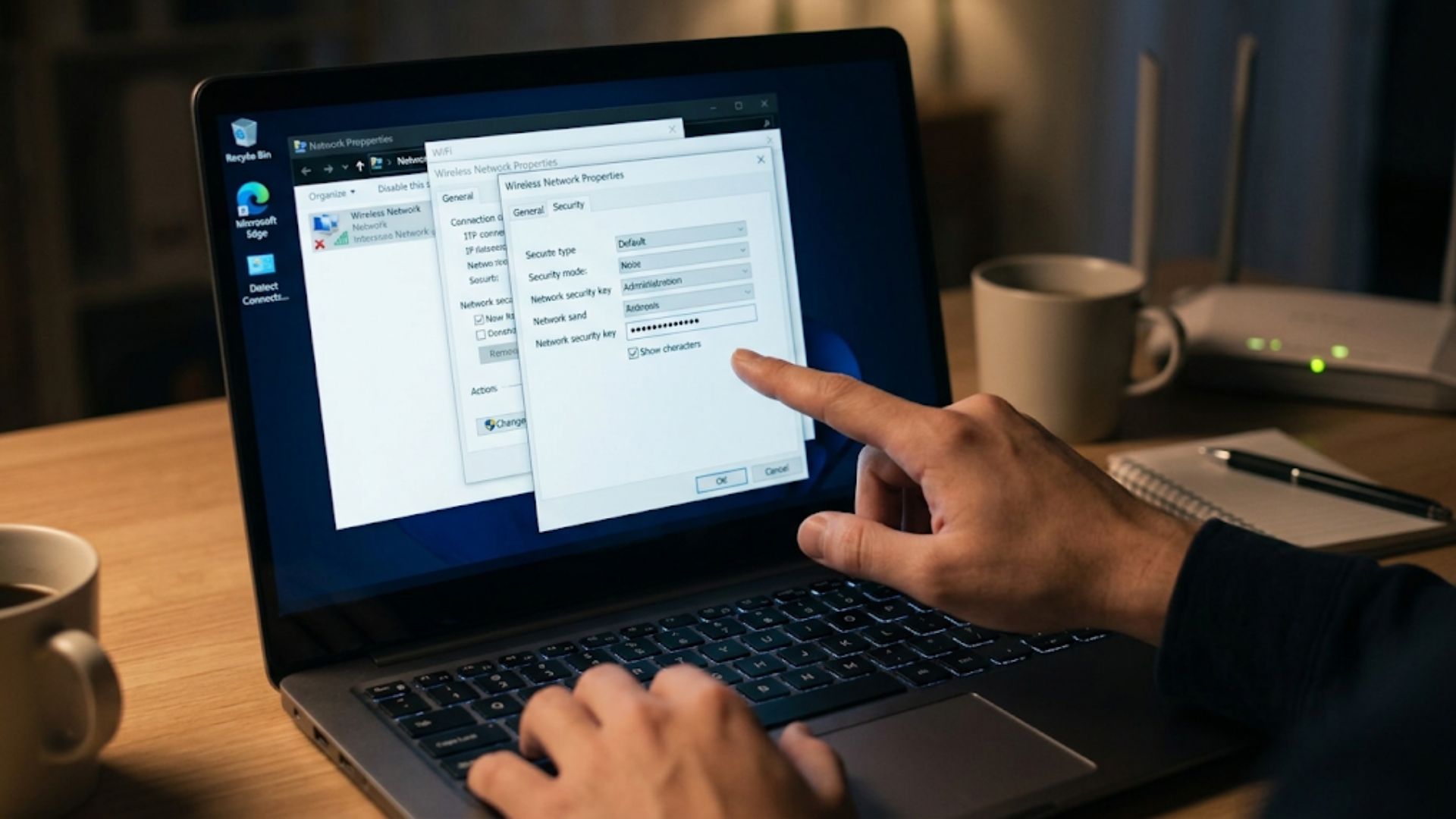
- Step 4: The Wi-Fi Status dialog box will appear. Click Wireless Properties.
- Step 5: Navigate to the Security tab at the top.
- Step 6: Check the box labeled Show characters. Voilà! Your WiFi password will appear in the Network security key field.
2. A "Hacker-Style" Trick Using Command Prompt (For Previously Connected Networks)
What if you're no longer connected to the WiFi network but used it on your laptop last week? You can use Windows Command Prompt (CMD) to retrieve the saved network information.
- Step 1: Click the Start/Windows button, type
cmd, right-click Command Prompt, and select Run as administrator. - Step 2: Enter the following command to display a list of WiFi networks your laptop has connected to before:
netsh wlan show profilePress Enter. - Step 3: Find the name of the WiFi network whose password you want to retrieve.
- Step 4: Enter the following command, replacing
NAMA_WIFIwith your network name:netsh wlan show profile name="NAMA_WIFI" key=clearPress Enter. - Step 5: Scroll down to the Security settings section. If the password is stored in the network profile, it will appear next to Key Content.
This method works for saved WiFi profiles that contain the relevant security key. If the field is missing, the password may not be stored in that profile.
3. How to Find Your WiFi Password on a MacBook (macOS)
For Apple users, macOS can store WiFi passwords in its password management system, including Keychain Access on supported versions. If you have the necessary Mac login credentials or permissions, retrieving a saved WiFi password is straightforward.
- Step 1: Press Command + Space simultaneously to open Spotlight Search.
- Step 2: Type
Keychain Accessand press Enter to open the application, if available on your macOS version. - Step 3: In the search field, enter the name of the WiFi network you're looking for.
- Step 4: Double-click the WiFi network in the search results.
- Step 5: Open the network information and select Show password, if that option is available.
- Step 6: Your Mac may ask you to authenticate using your administrator credentials or another approved verification method. Once authenticated, the saved WiFi password should become visible.
On newer macOS versions, you may also be able to find saved WiFi passwords through the Passwords app or the WiFi settings, depending on your version.
Secure Your Network, Don't Just Memorize the Password
Forgetting your own WiFi password is completely normal. However, it can also be a good opportunity to review your network security.
If the password you retrieve turns out to be too simple, such as "12345678" or "admin123", consider changing it to a stronger, unique password to reduce the risk of unauthorized access.
Network stability and security are essential, especially when WiFi supports business operations, villa rentals, or cafés. To keep your digital environment running smoothly, make sure you have a reliable internet infrastructure in Bali from a professional provider.
Gecko Internet Bali offers reliable, high-speed WiFi connectivity in Bali for businesses and commercial properties. Beyond providing fast internet with minimal buffering, Gecko Internet Bali is supported by experienced technicians who can help you design a secure, organized, and manageable network infrastructure.
With proactive technical support, you can spend less time worrying about network issues, forgotten router administrator passwords, or unstable connections, and more time focusing on your business.
Looking for reliable business internet in Bali? Contact Gecko Internet Bali to discuss an internet and network solution tailored to your property's needs.